
1. Learn first
Read or explore the concept before building the page. Identify the few facts you truly need to remember.
A+ Study • Make • Review
Do not just copy notes. Build a hands-on study tool with drawings, printed images, labels, flaps, mini-books, cable samples, paper mechanisms, memory tricks, and your own explanations. The goal is to make difficult A+ concepts easier to see, touch, remember, and review later.
How to build it
Read or explore the concept before building the page. Identify the few facts you truly need to remember.
Draw, print, trace, cut out, label, fold, or attach something that represents the concept.
Write what the part, command, protocol, or process does in plain language. Avoid copying a paragraph you do not understand.
Use a flap, wheel, slider, pocket, matching piece, hidden answer, lift-up label, or removable card when it helps learning.
Add a short analogy, sketch, acronym, comparison, color cue, or phrase that helps you retrieve the idea later.
Cover the answers and test yourself. If the page cannot help you practice, improve it before moving on.
Build ideas
| Topic | Notebook idea | What to practice |
|---|---|---|
| PC hardware | Draw or print a motherboard. Add lift-up labels for CPU, RAM, storage connectors, expansion slots, power connectors, and ports. | Name the component, identify it, and explain its job. |
| CPU + RAM | Make a CPU mini-book and RAM flap. Trace how active data moves between storage, RAM, and CPU. | Cores, threads, clock speed, sockets, RAM types, capacity, and temporary vs. persistent storage. |
| Storage | Create a pocket with removable HDD, SATA SSD, M.2 SATA, and NVMe cards. | Interface, form factor, speed, capacity, and best-use comparisons. |
| Cables + ports | Attach safe, short pieces of retired cable or draw connector ends. Make a flip book with the port hidden under each flap. | Recognize connectors and match them to their purpose. |
| Networking | Build a small paper network. Move a packet card from device → switch/AP → router → destination. | IP, MAC, ports, protocols, devices, wired/wireless, and troubleshooting. |
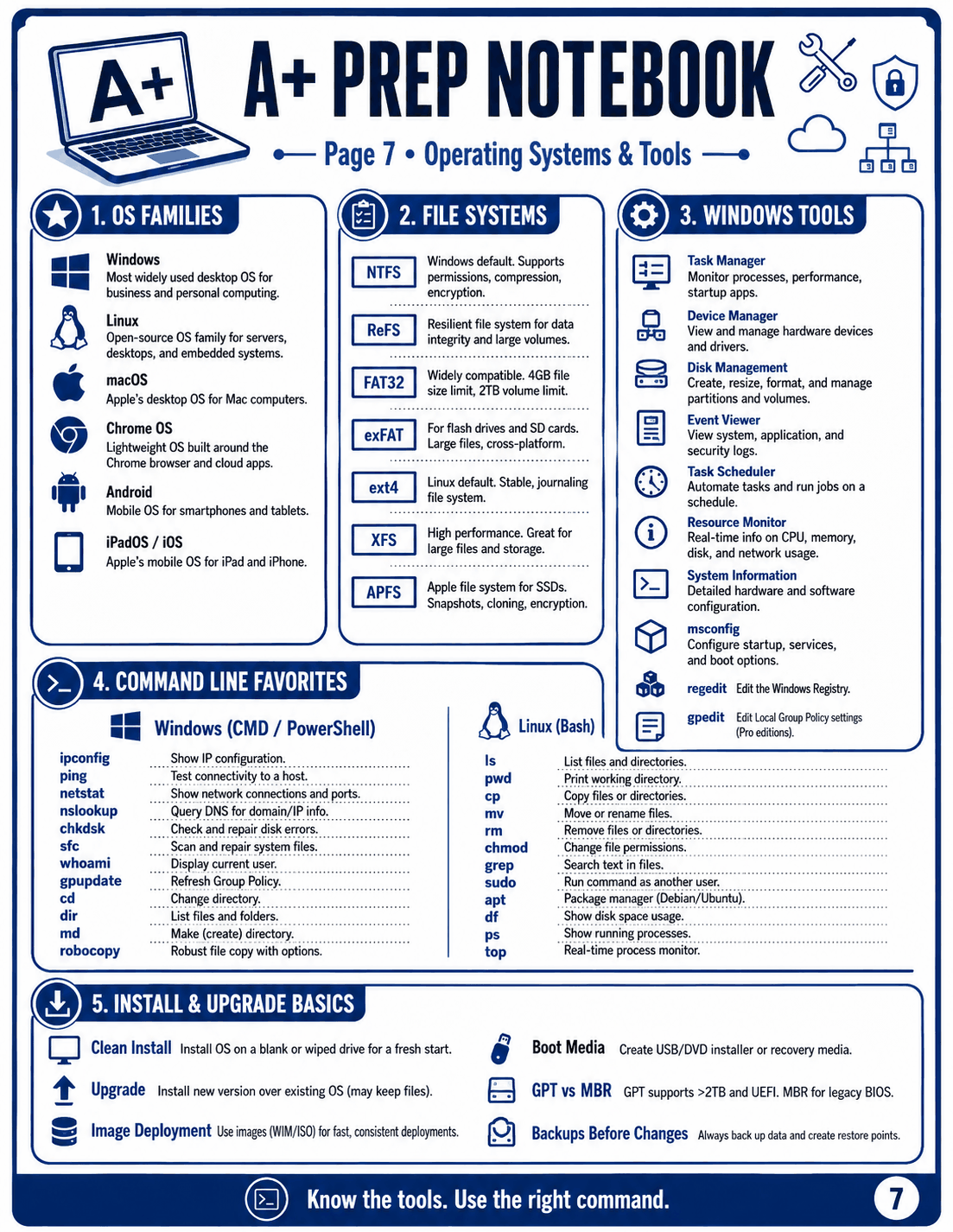
| Operating systems | Use tabs or mini-cards for Windows, Linux, macOS, mobile OSs, file systems, commands, and utilities. | Recognize tools, commands, features, and troubleshooting choices. |
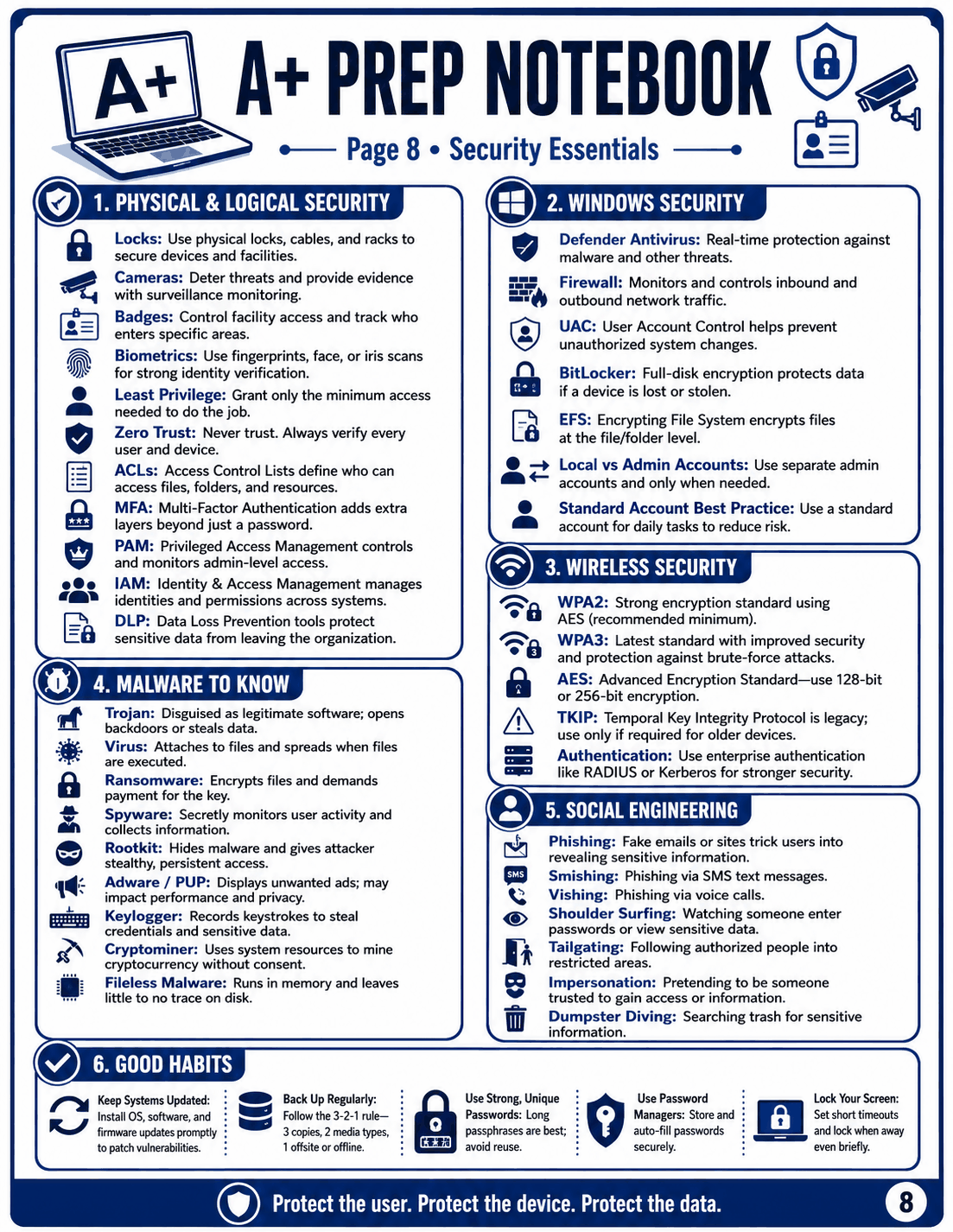
| Security | Build a CIA triad wheel, authentication flap, malware matchbook, and physical-security mini-cards. | Threat recognition, controls, permissions, authentication, and safe response. |
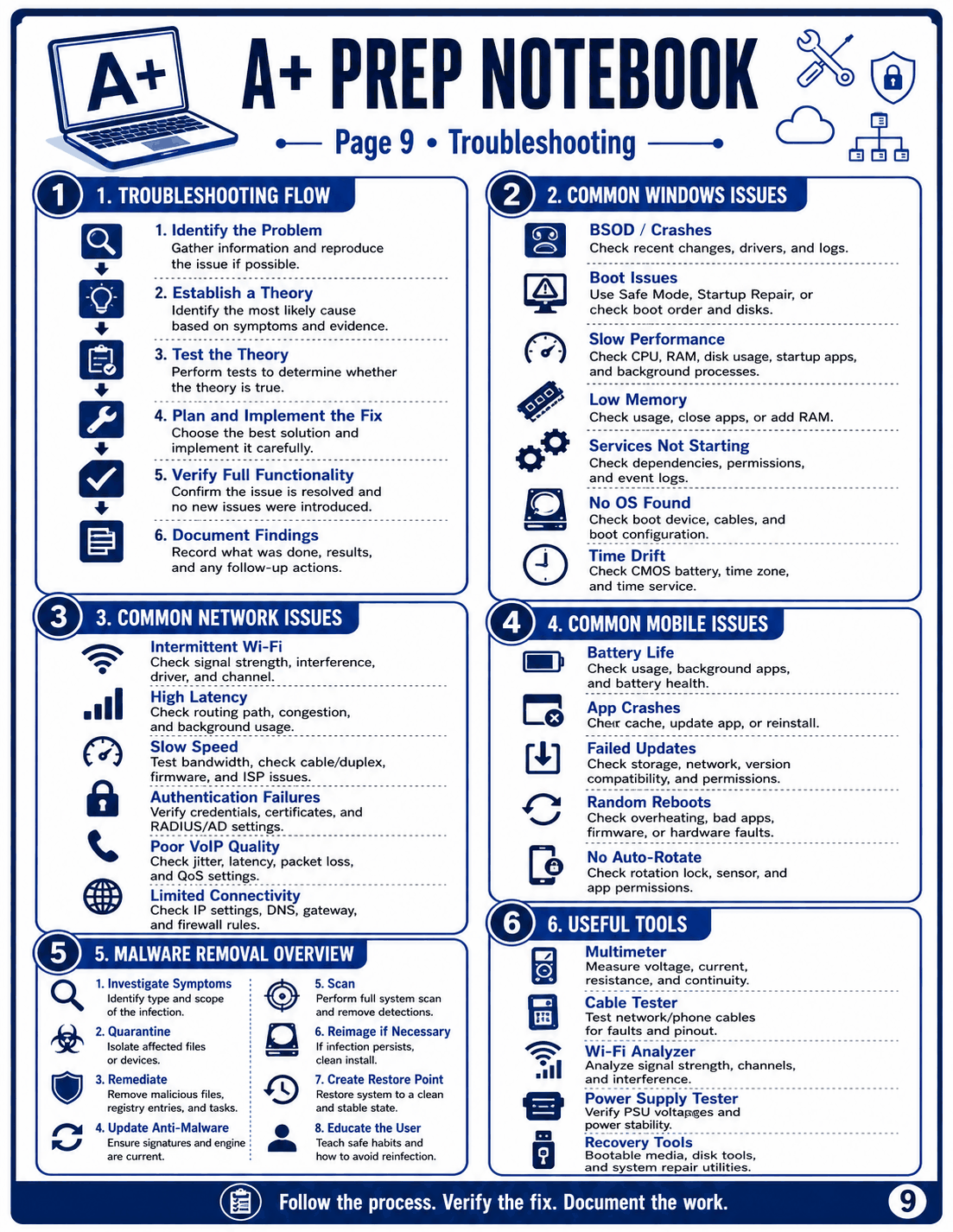
| Troubleshooting | Create a six-step troubleshooting accordion. Put a symptom on the front and likely checks underneath. | Use a process instead of guessing. |
Use what you have
Safety: Do not dismantle powered devices, open a power supply, attach sharp electronic parts, or use damaged batteries. Use only clean, disconnected, safe materials.
Suggested notebook flow
Certification roadmap → computer anatomy → CPU/RAM → storage/cables → mobile devices.
Networking → virtualization/cloud → operating systems → commands and utilities.
Security → troubleshooting → operational procedures → mixed review and exam-prep pages.
FamilyPD image resources
You do not have to reproduce these pages exactly. Open an image to view it full size, then decide whether to print it, redraw the important part, or build your own hands-on version.
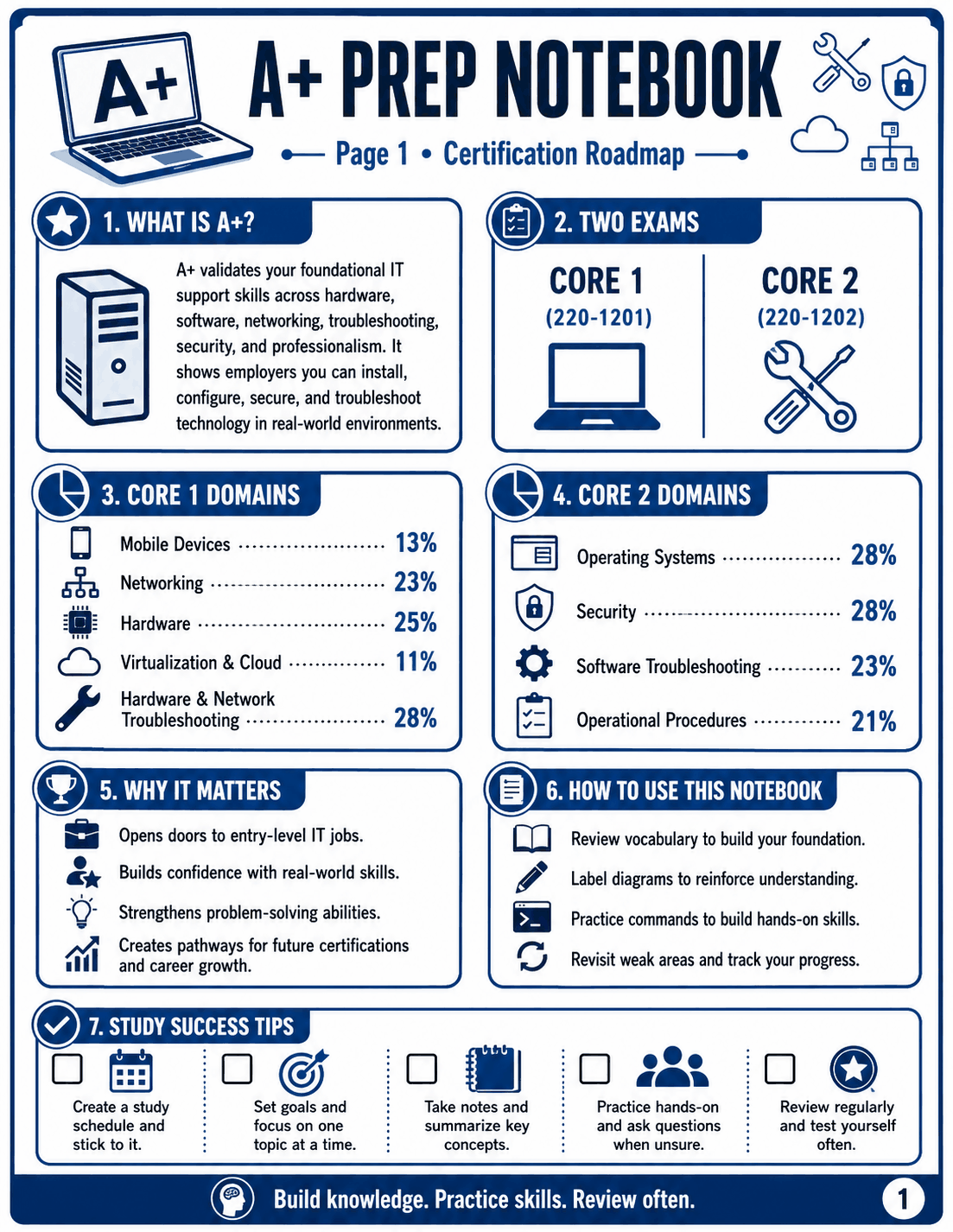
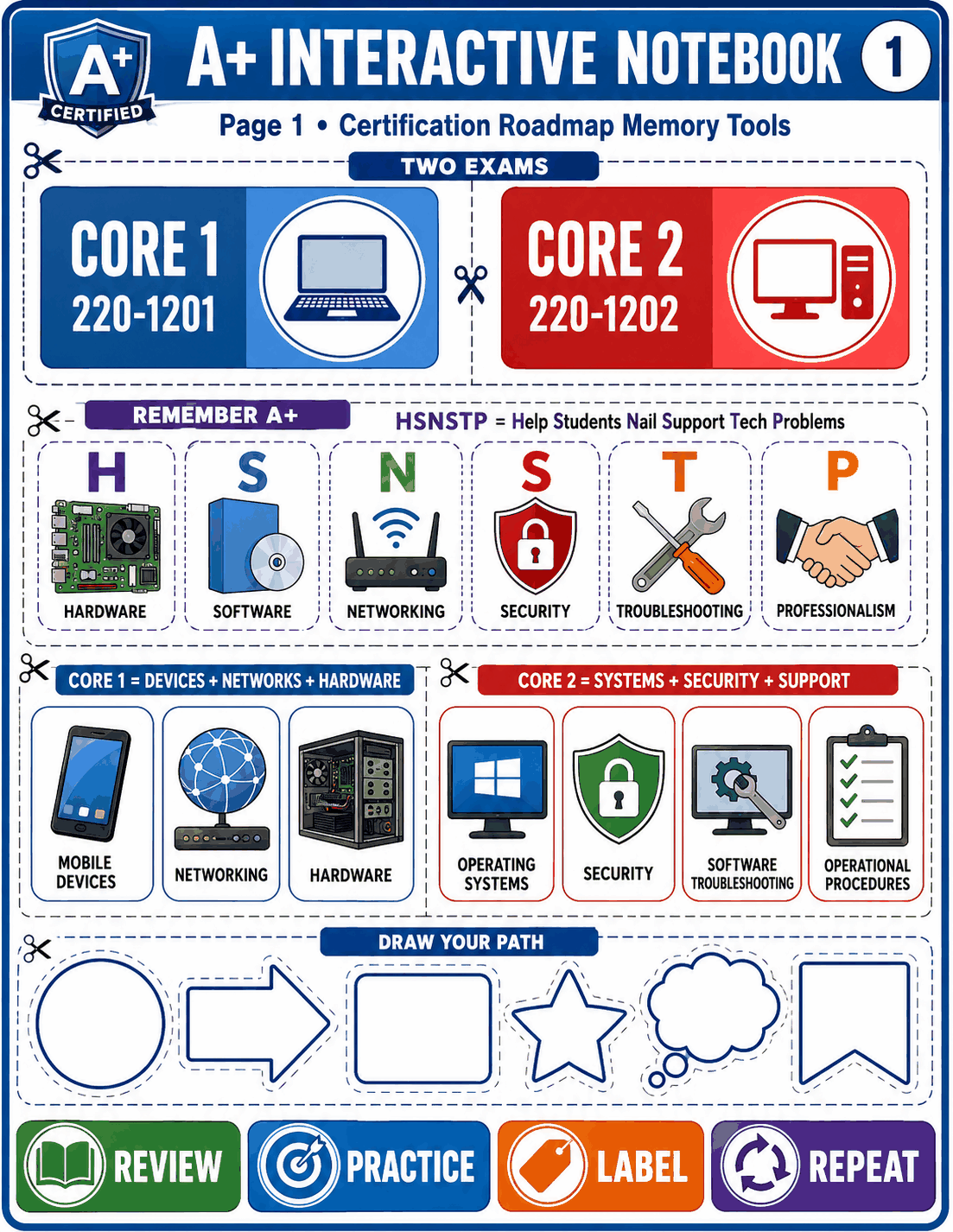 Certification RoadmapOpen full-size image
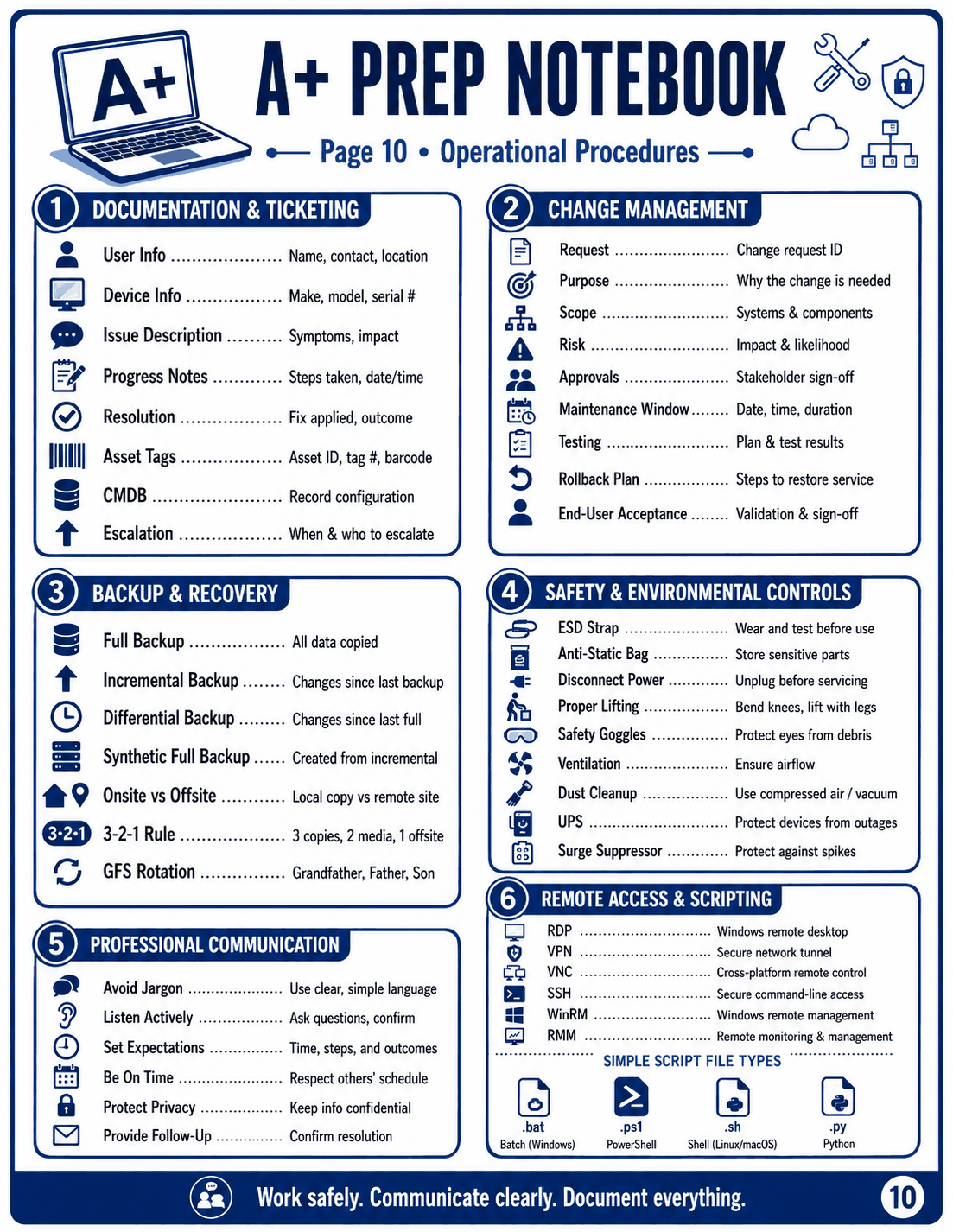
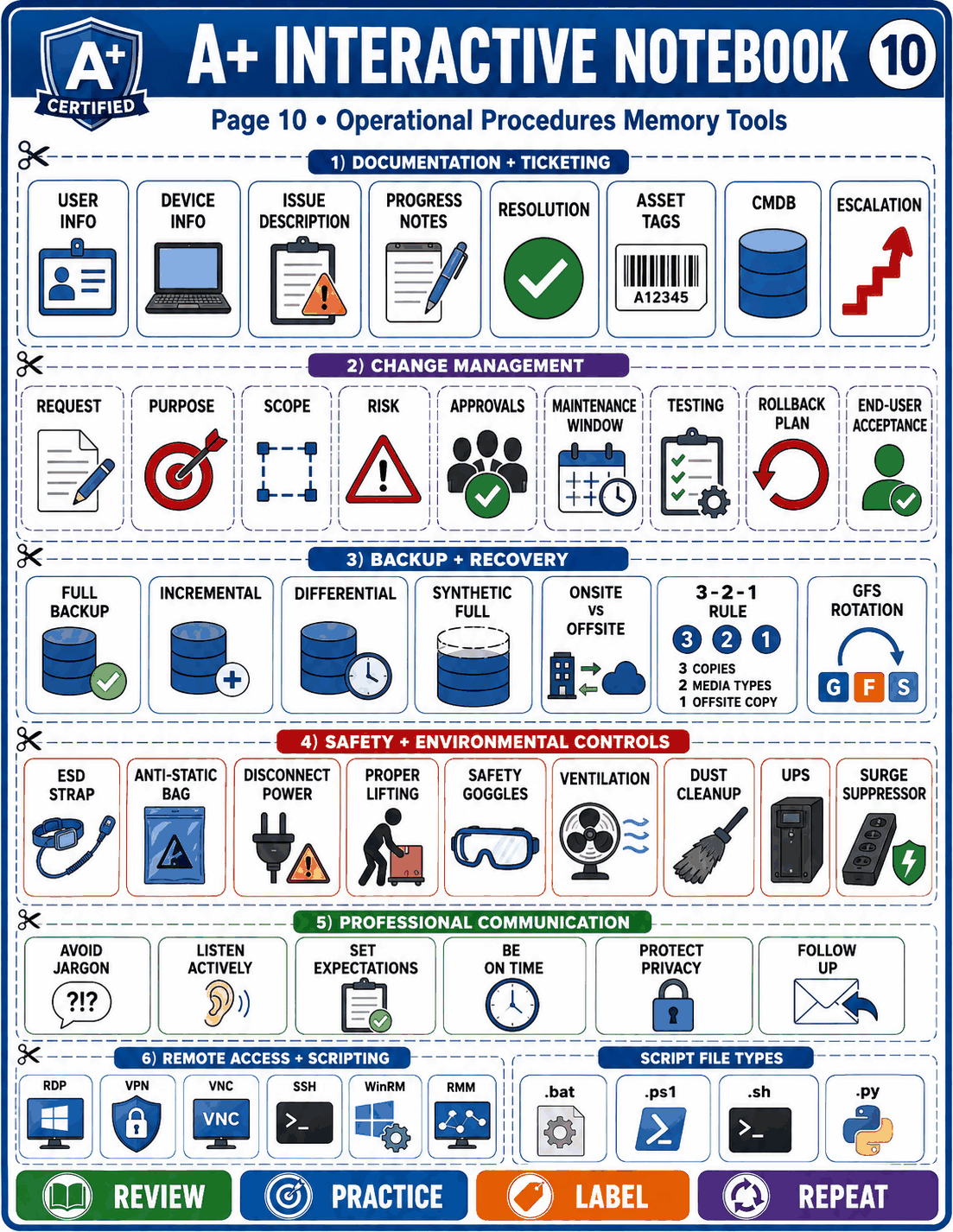 Operational ProceduresOpen full-size image
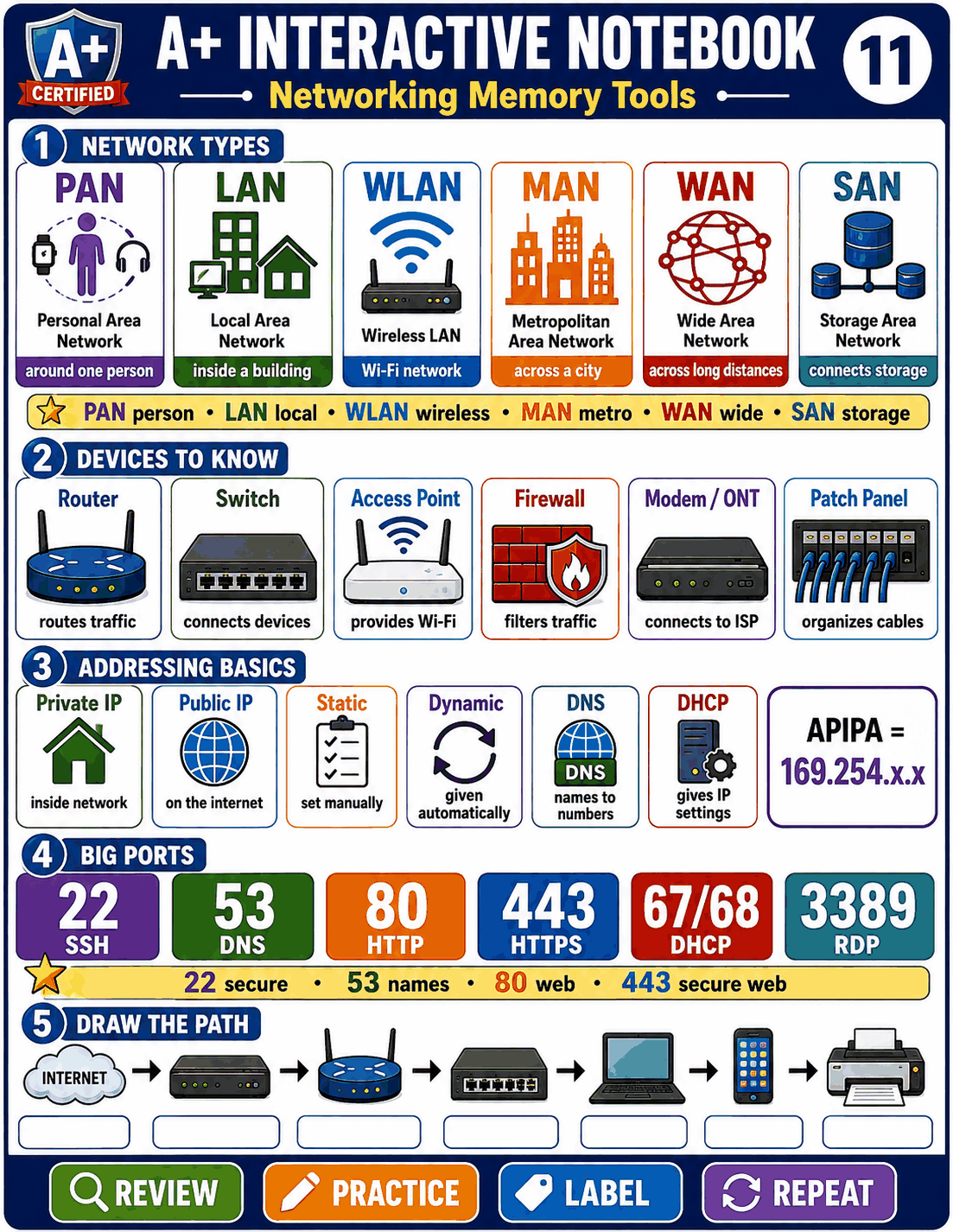 Networking ReviewOpen full-size image
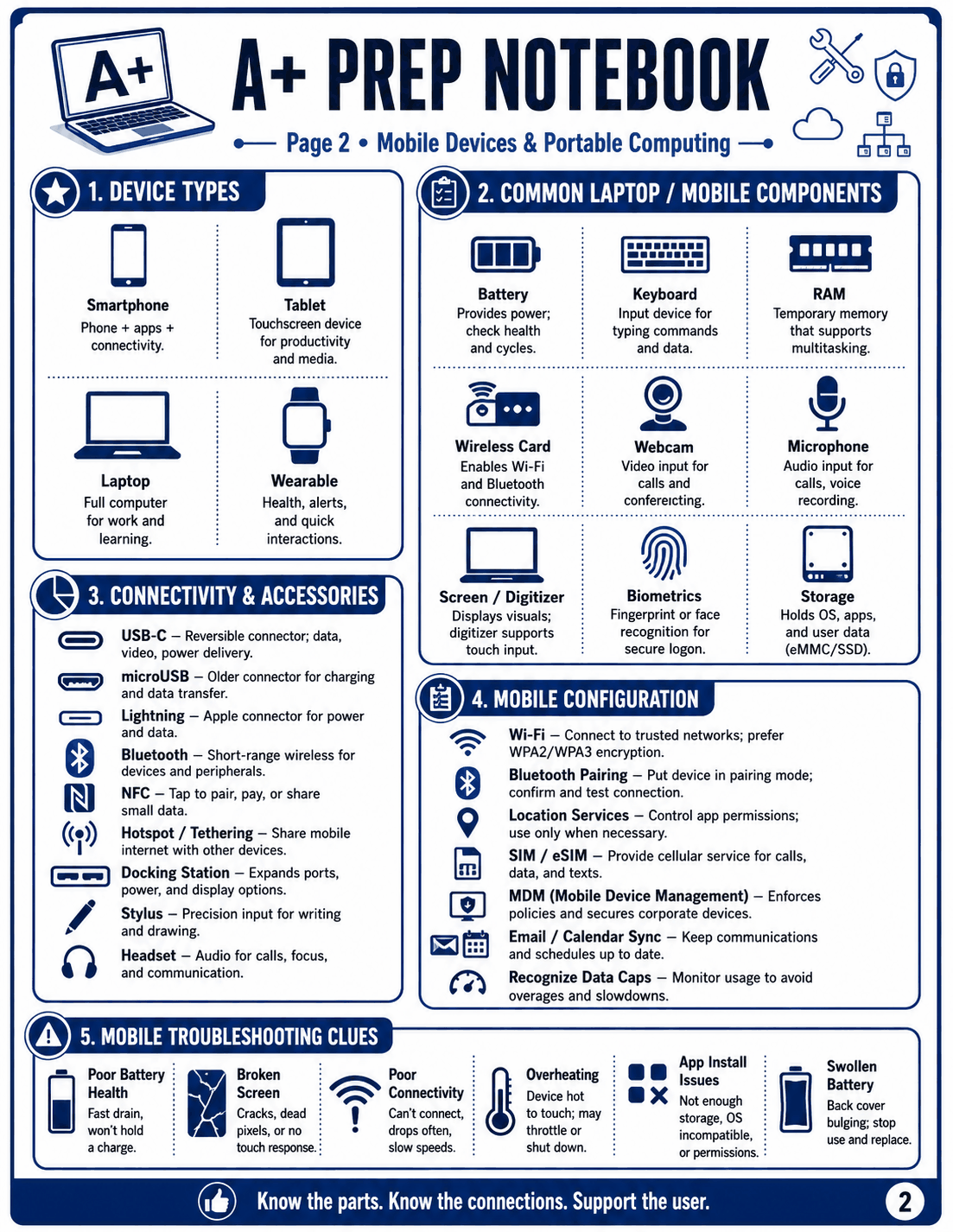
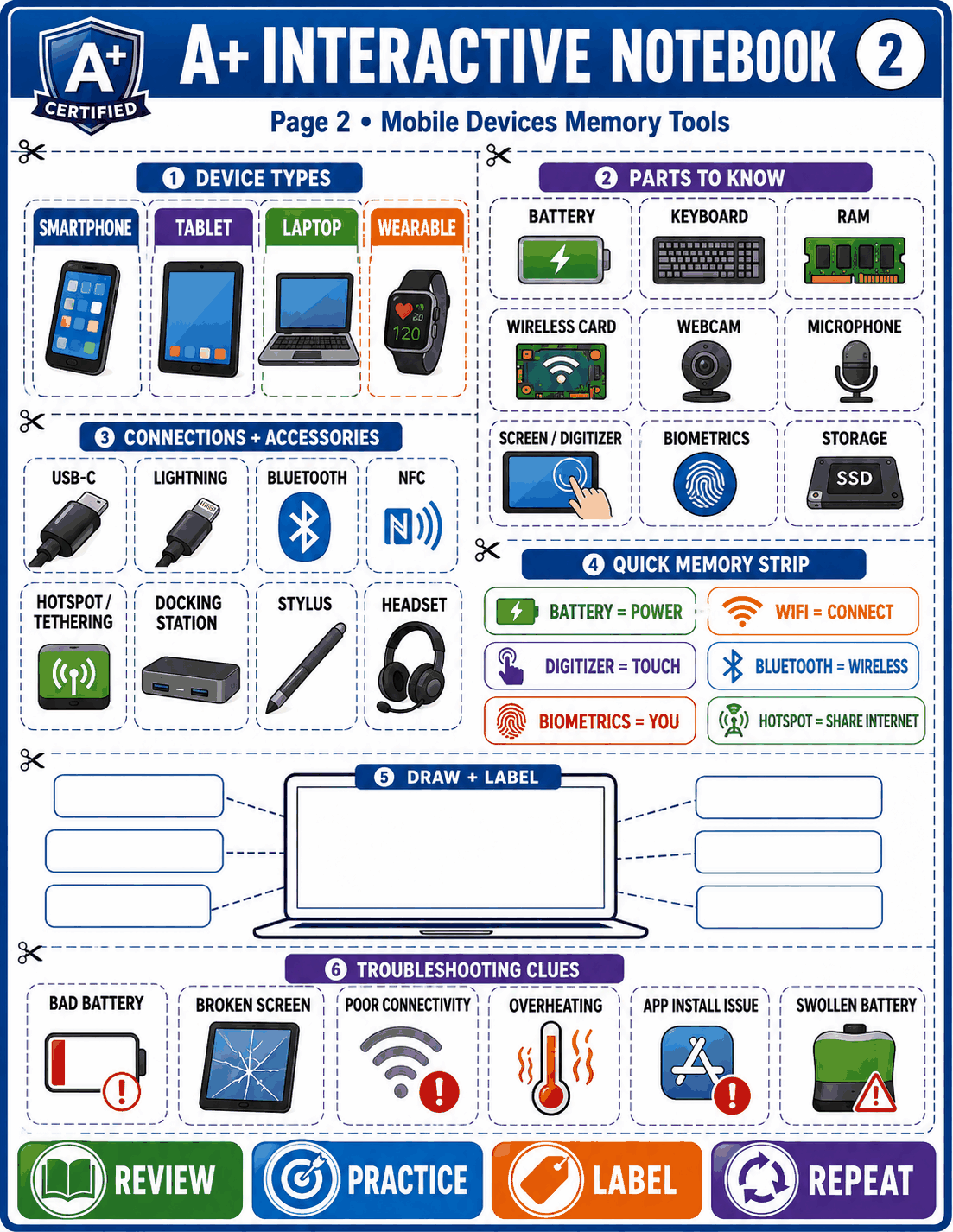 Mobile DevicesOpen full-size image
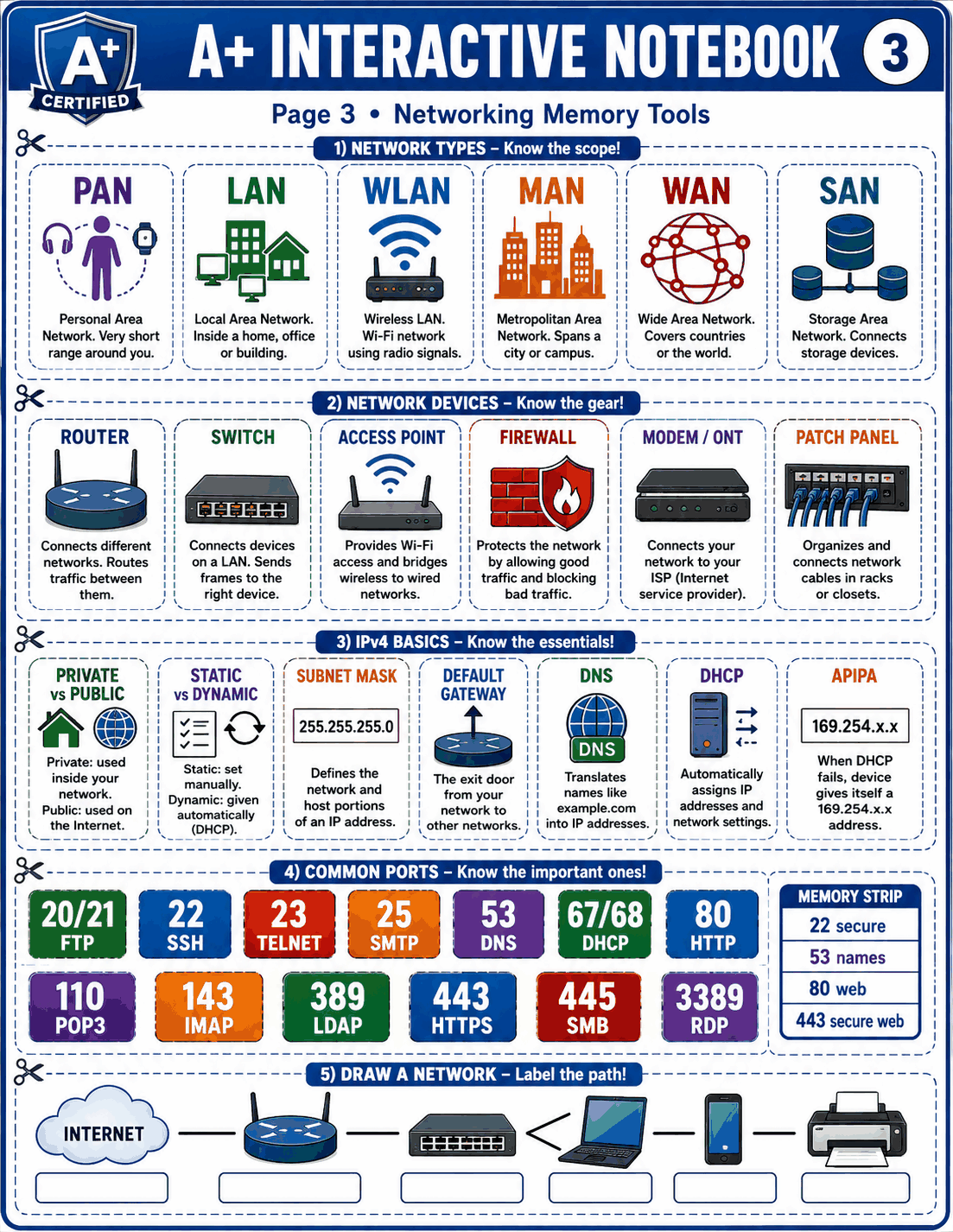 Networking ConceptsOpen full-size image
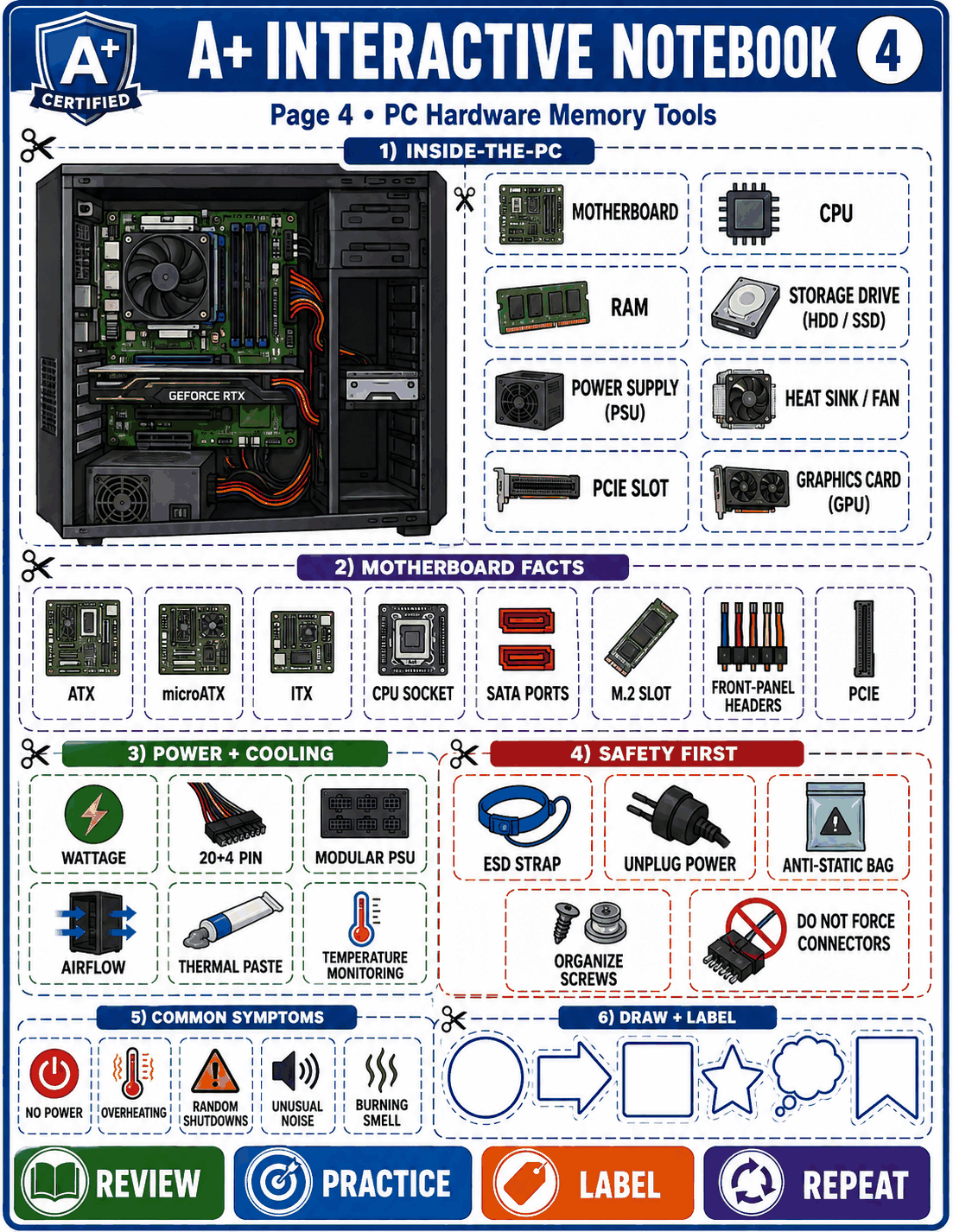 PC HardwareOpen full-size image
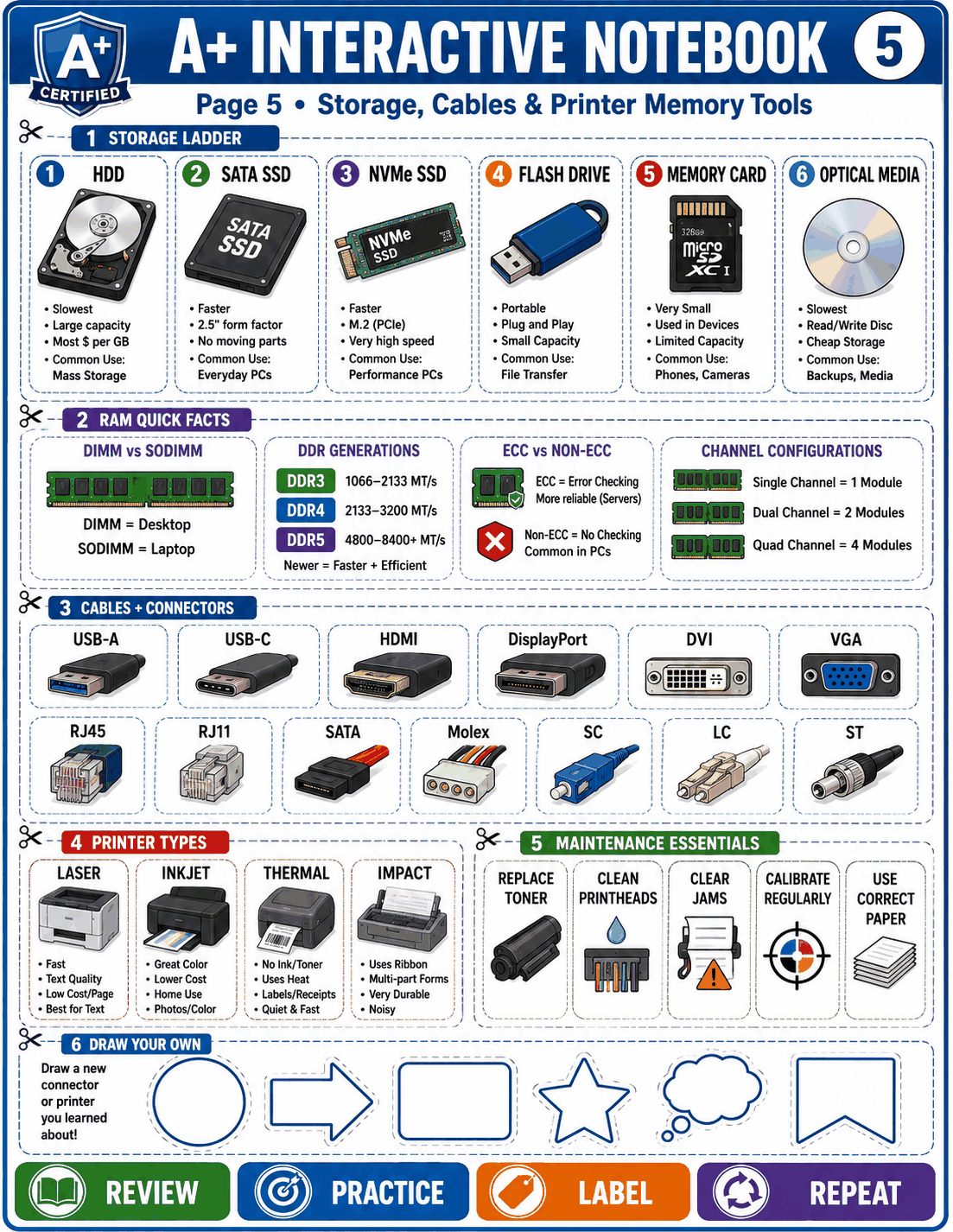 Storage & CablesOpen full-size image
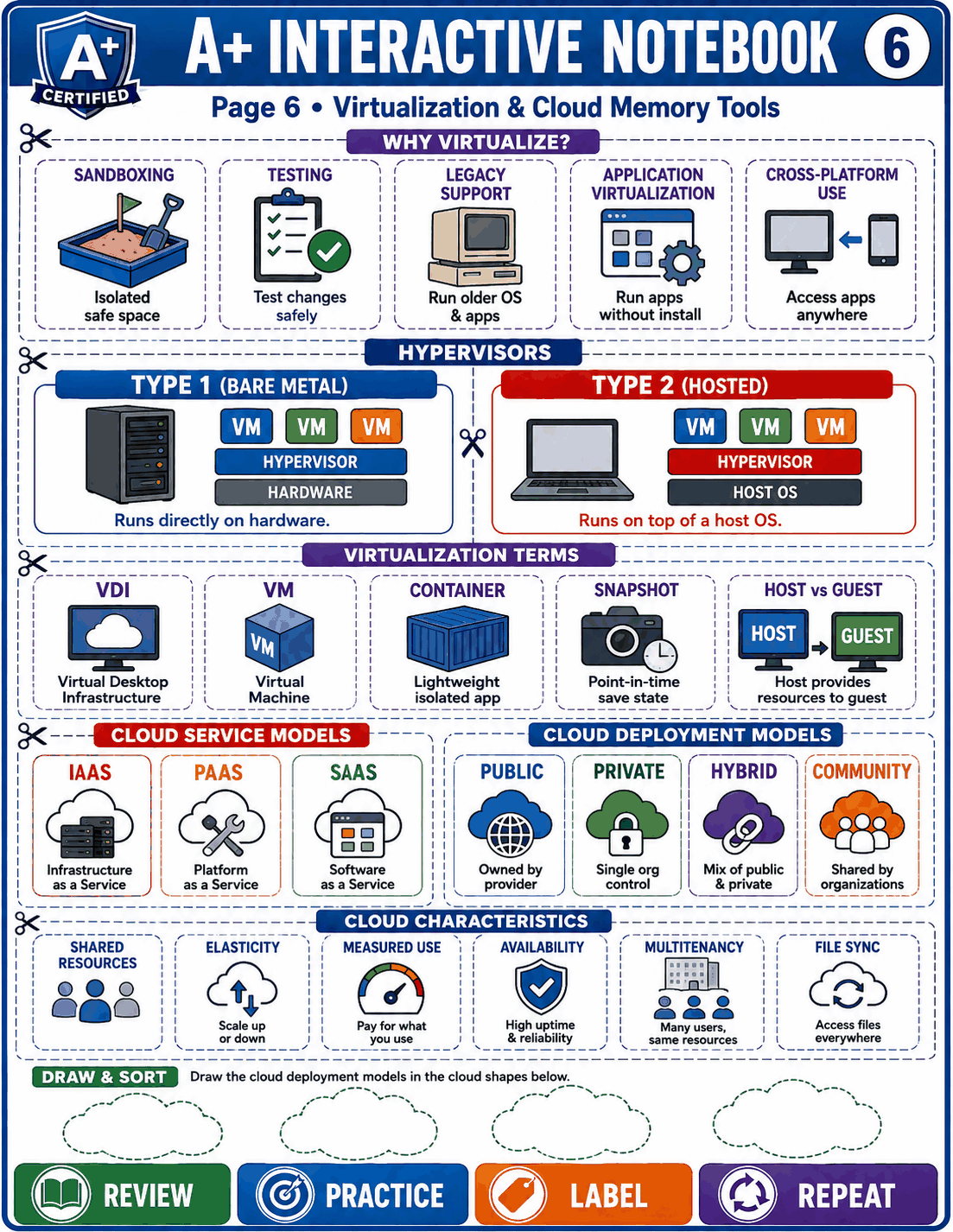 Virtualization & CloudOpen full-size image
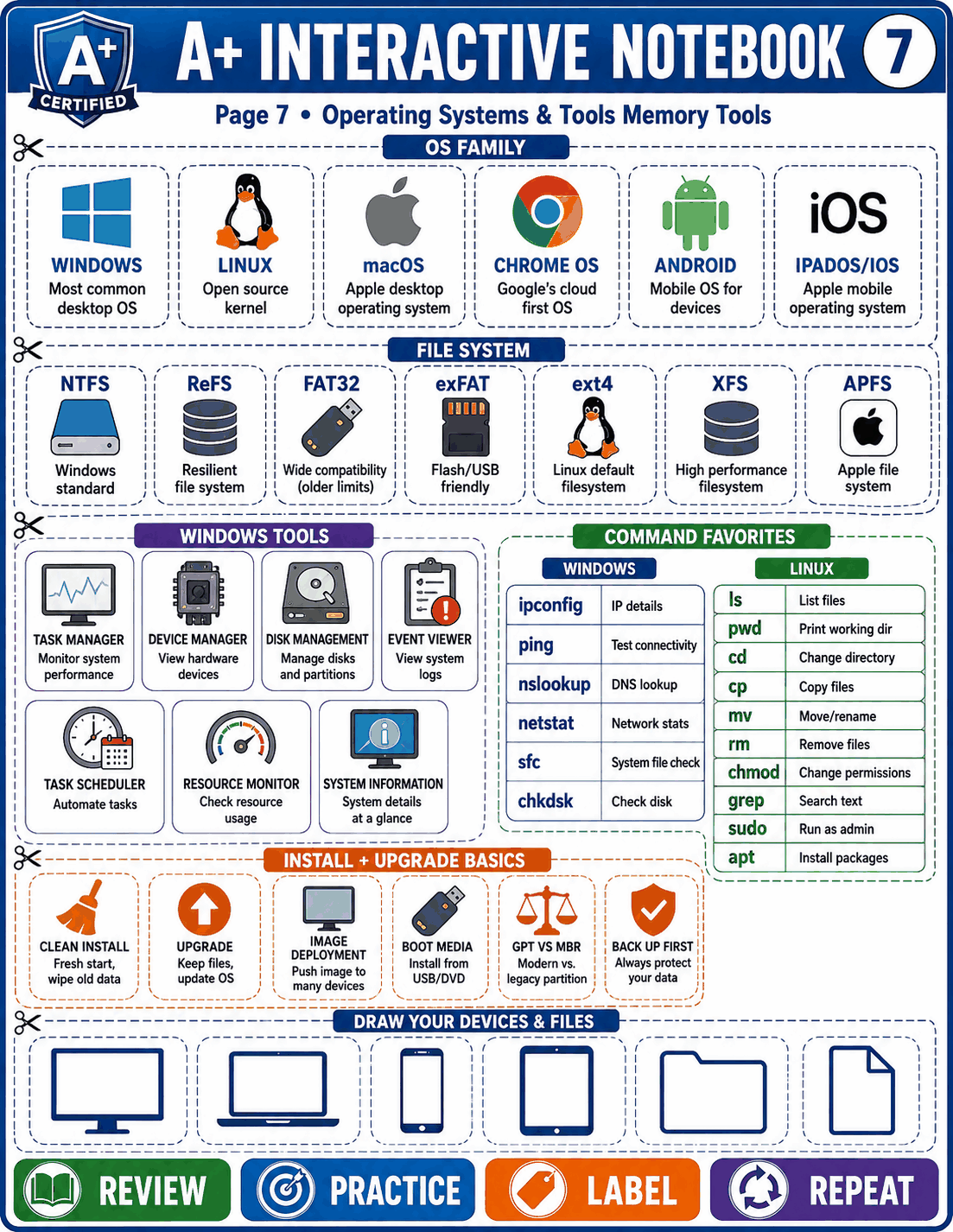 Operating SystemsOpen full-size image
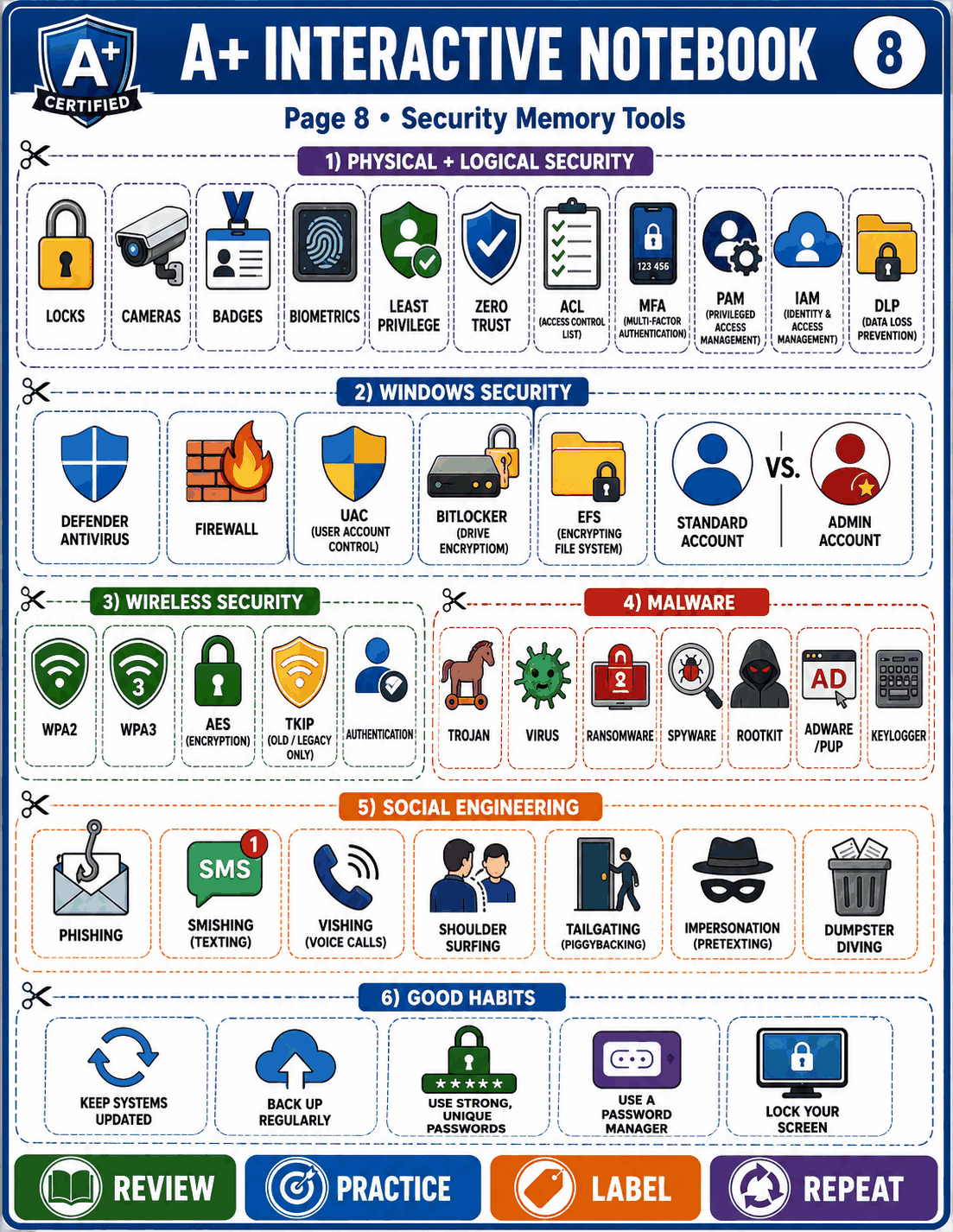 SecurityOpen full-size image
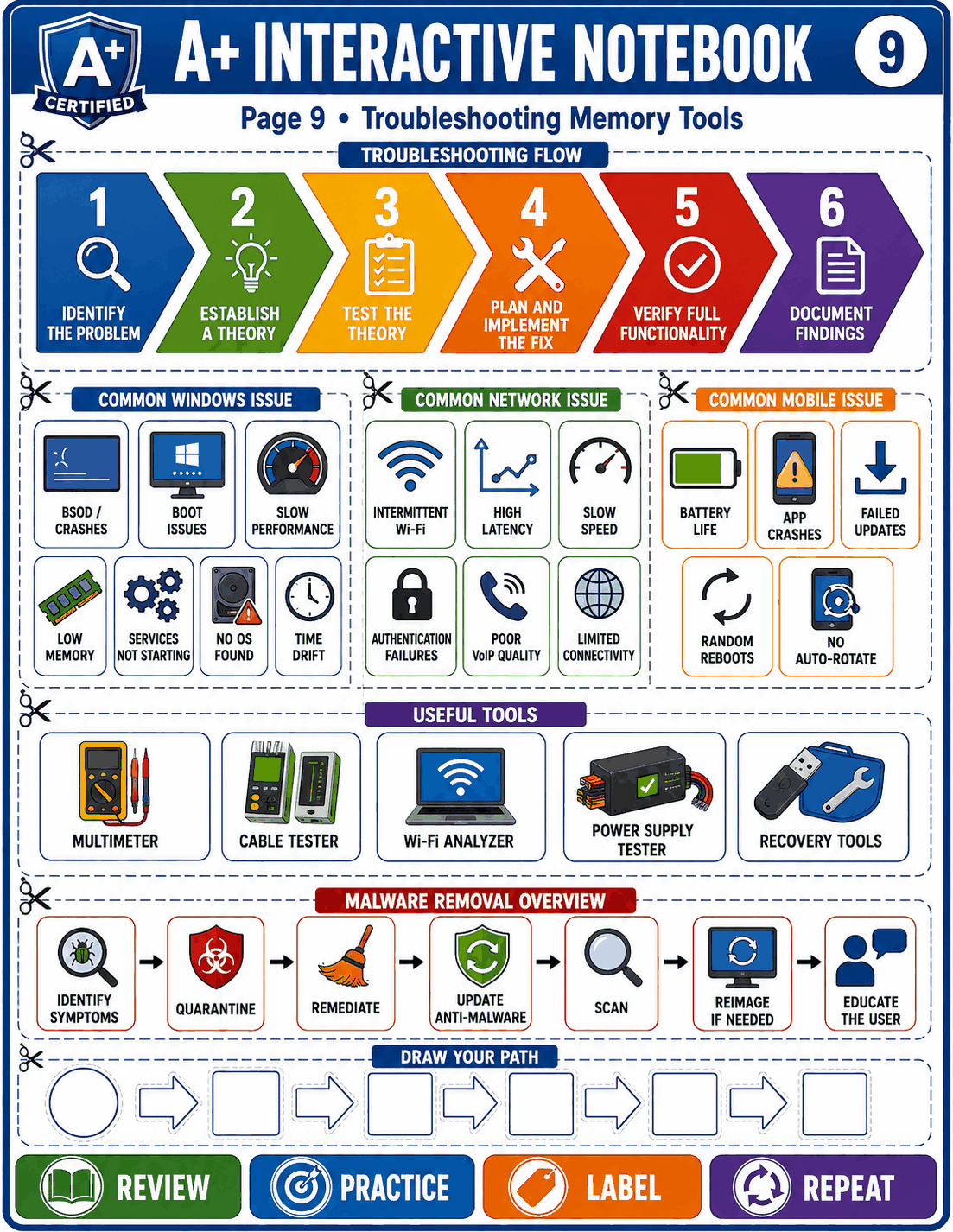 TroubleshootingOpen full-size image
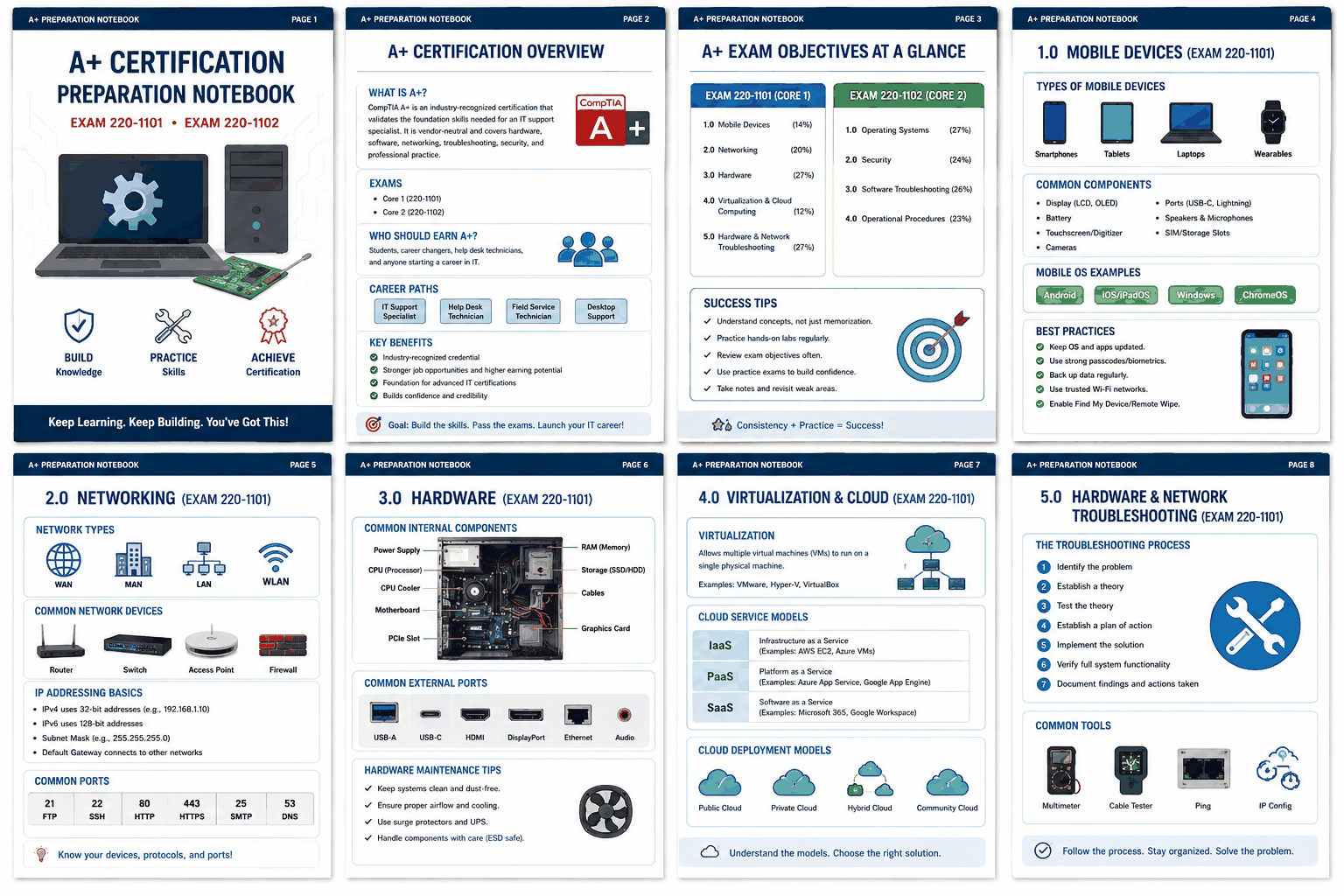 A+ Memory & Practice VisualOpen full-size image
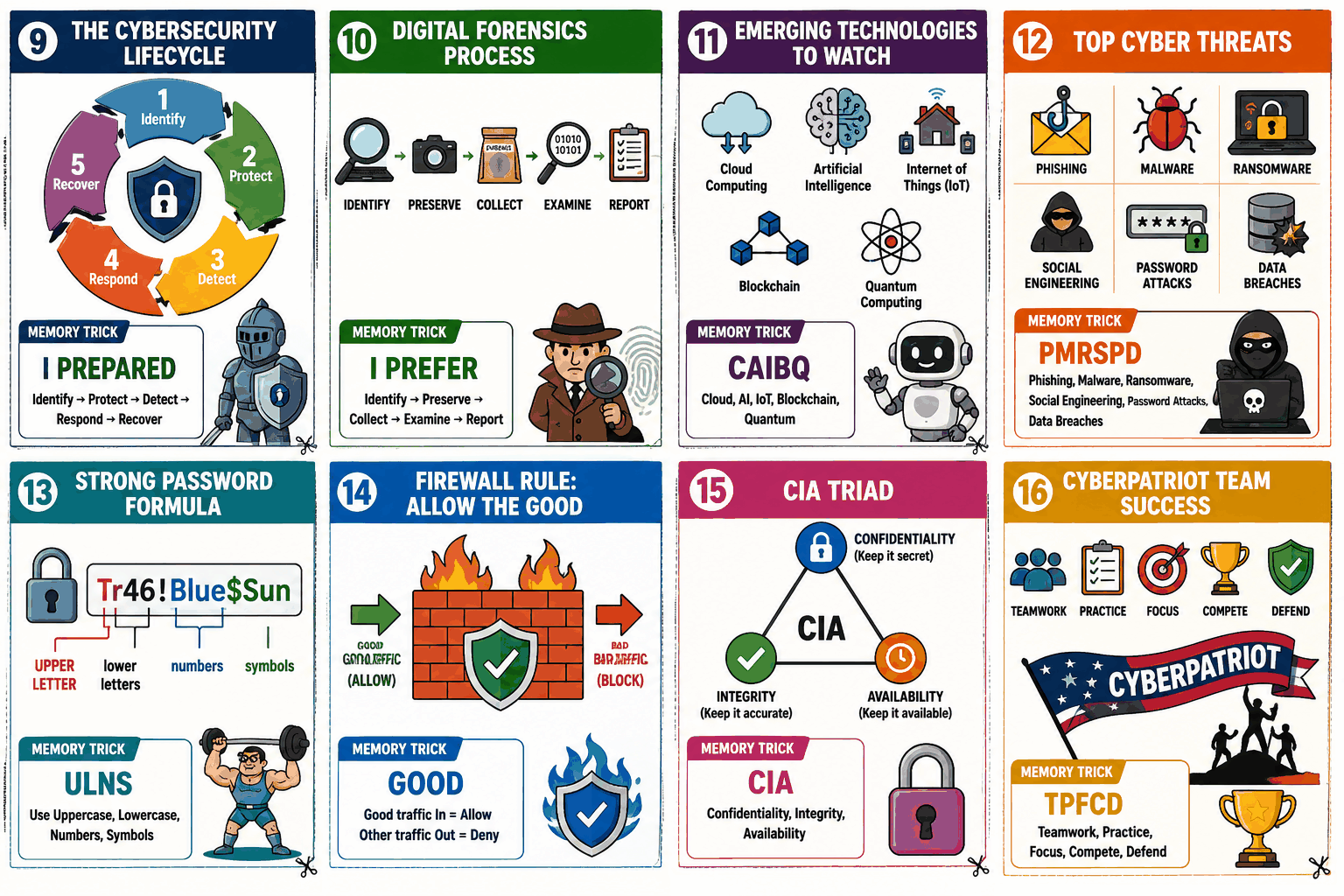 A+ Memory & Practice VisualOpen full-size image
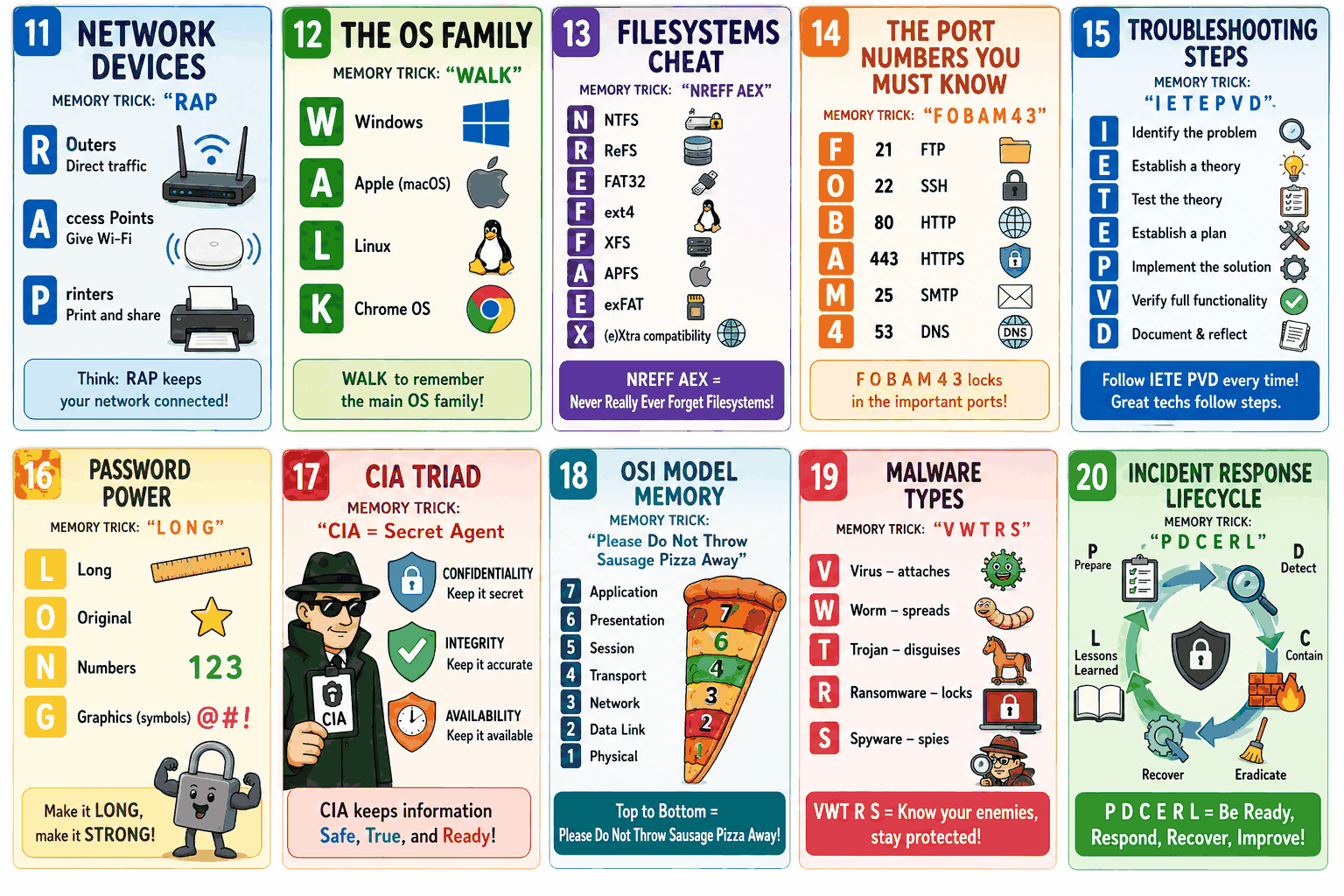 A+ Memory & Practice VisualOpen full-size image
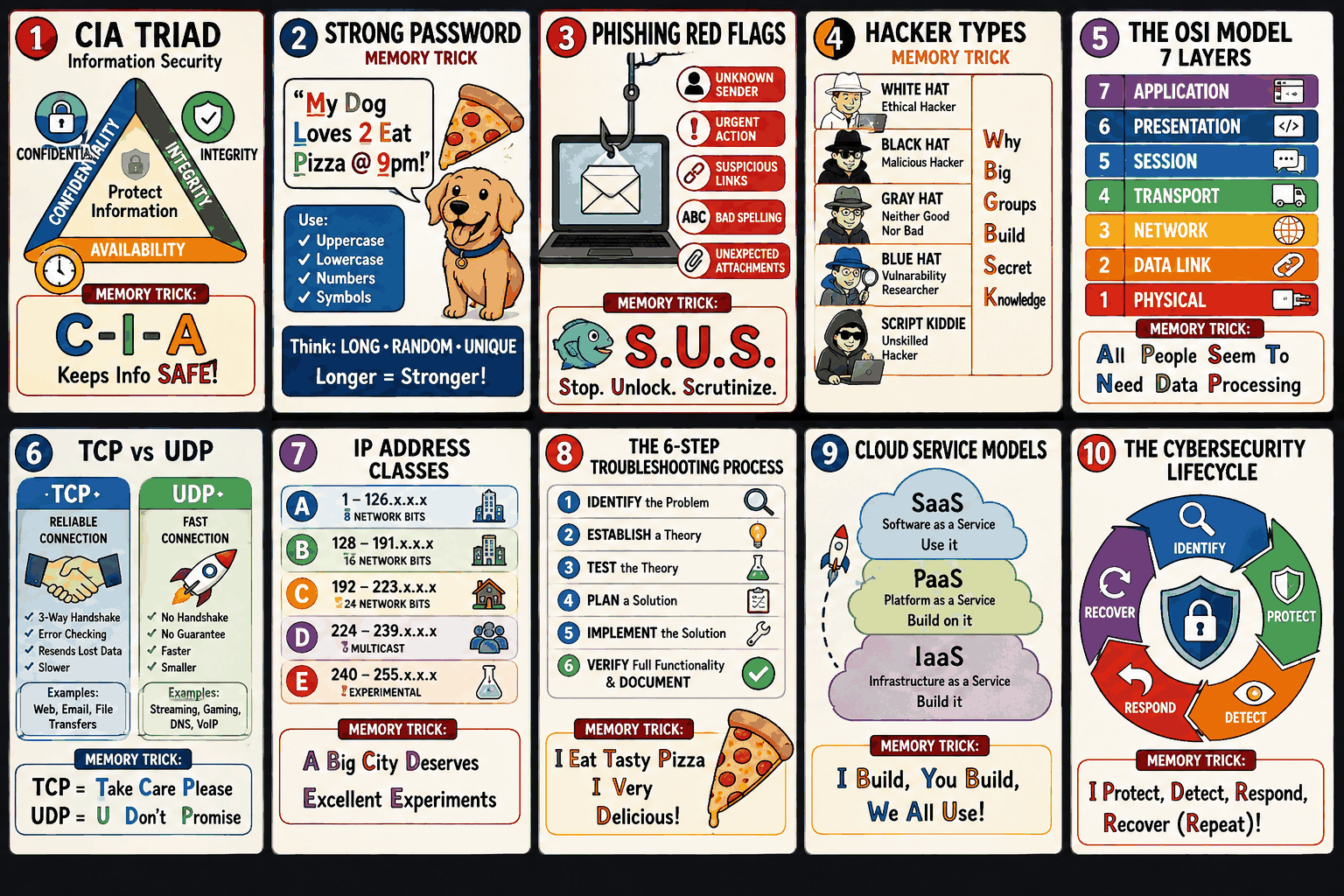 A+ Memory & Practice VisualOpen full-size image
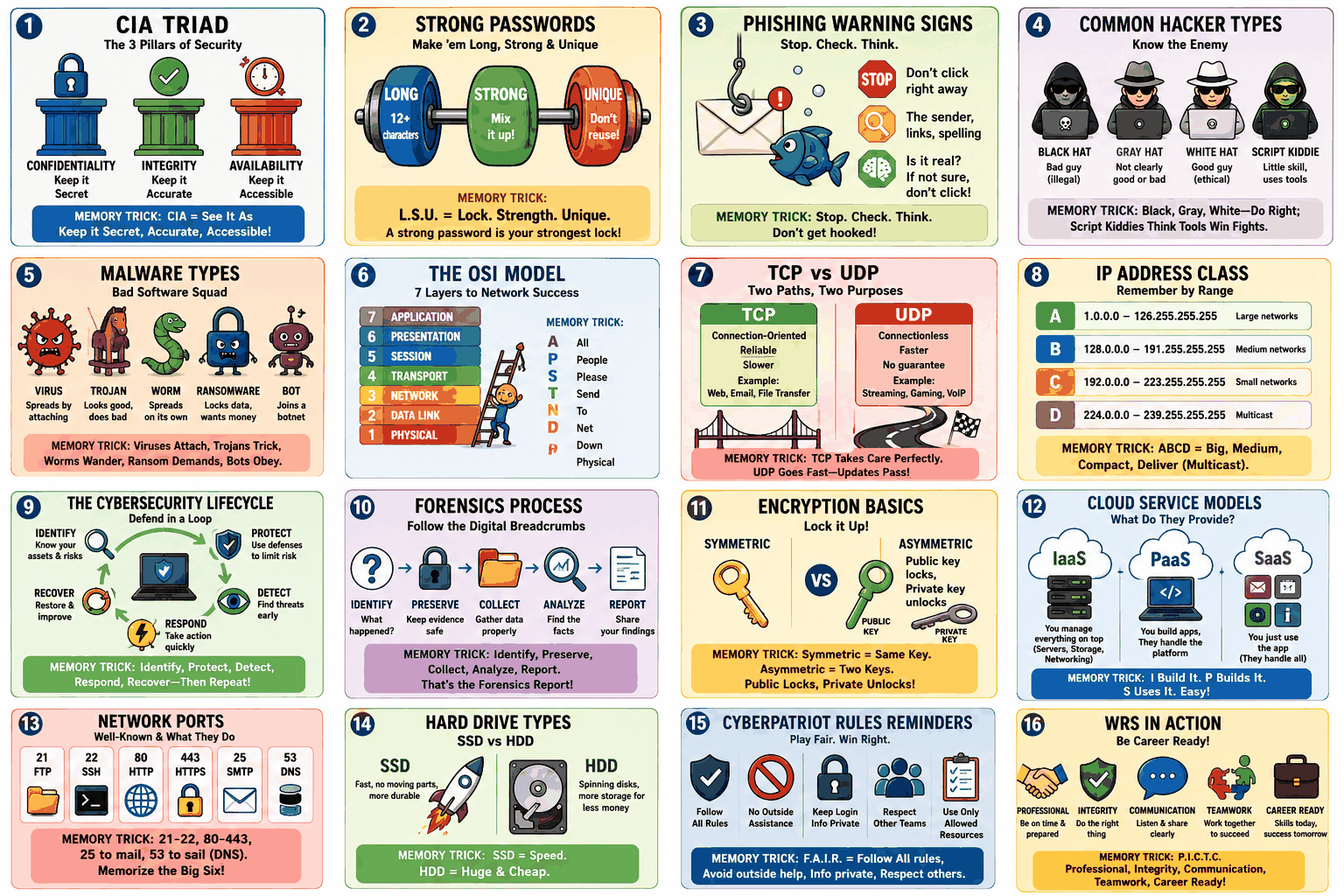 A+ Memory & Practice VisualOpen full-size image
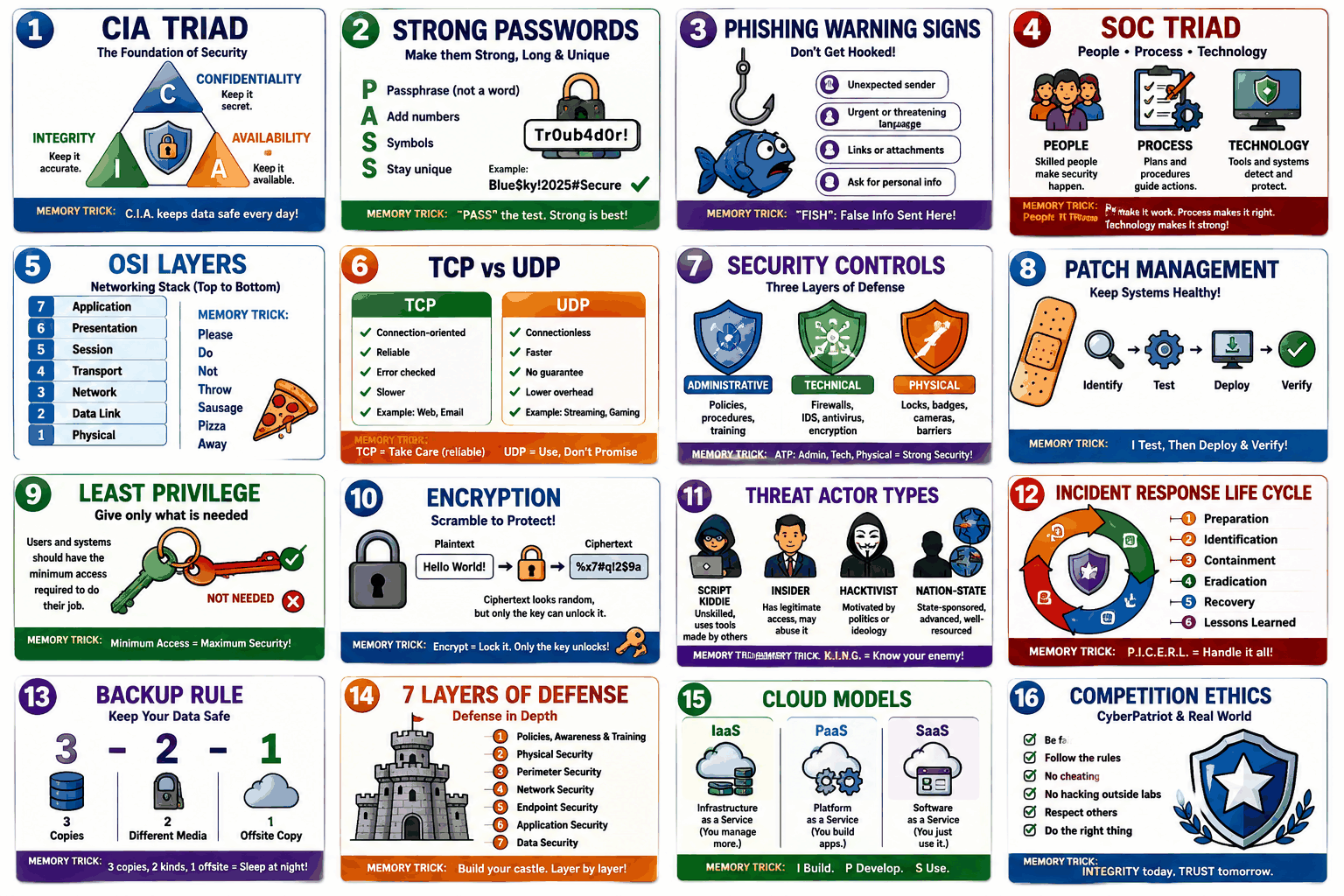 A+ Memory & Practice VisualOpen full-size image
 A+ Memory & Practice VisualOpen full-size image
 A+ Memory & Practice VisualOpen full-size image
 A+ Memory & Practice VisualOpen full-size image
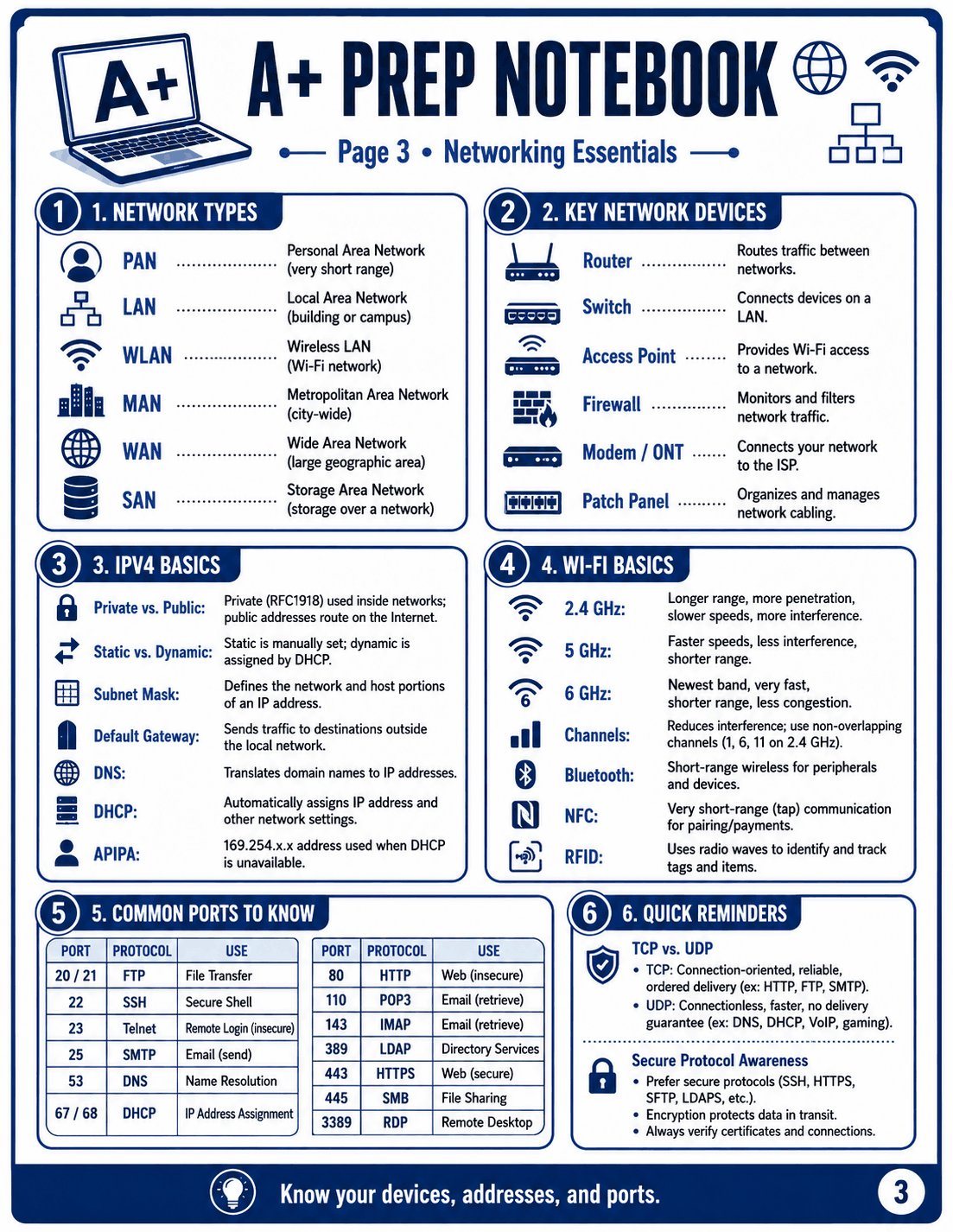 A+ Memory & Practice VisualOpen full-size image
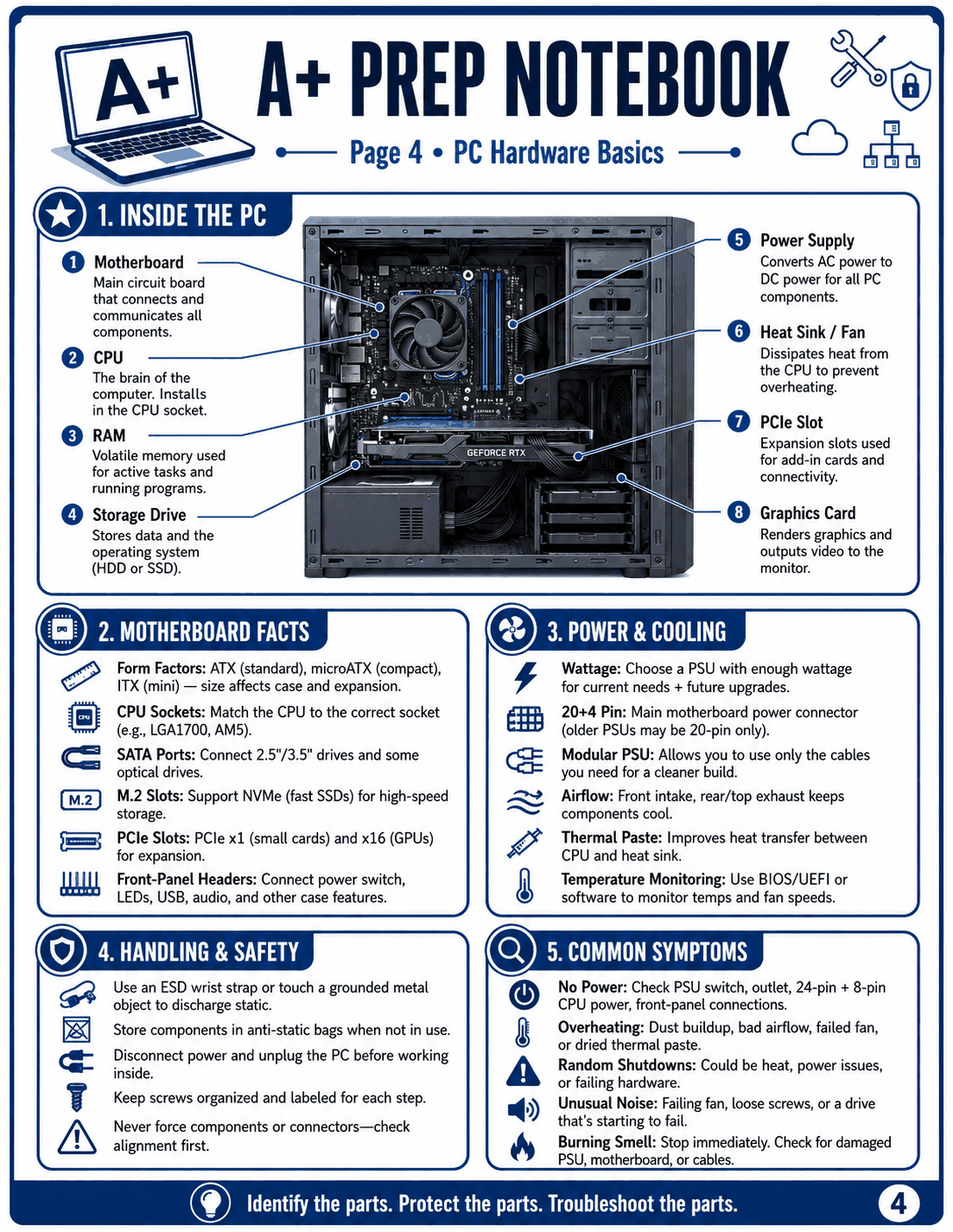 A+ Memory & Practice VisualOpen full-size image
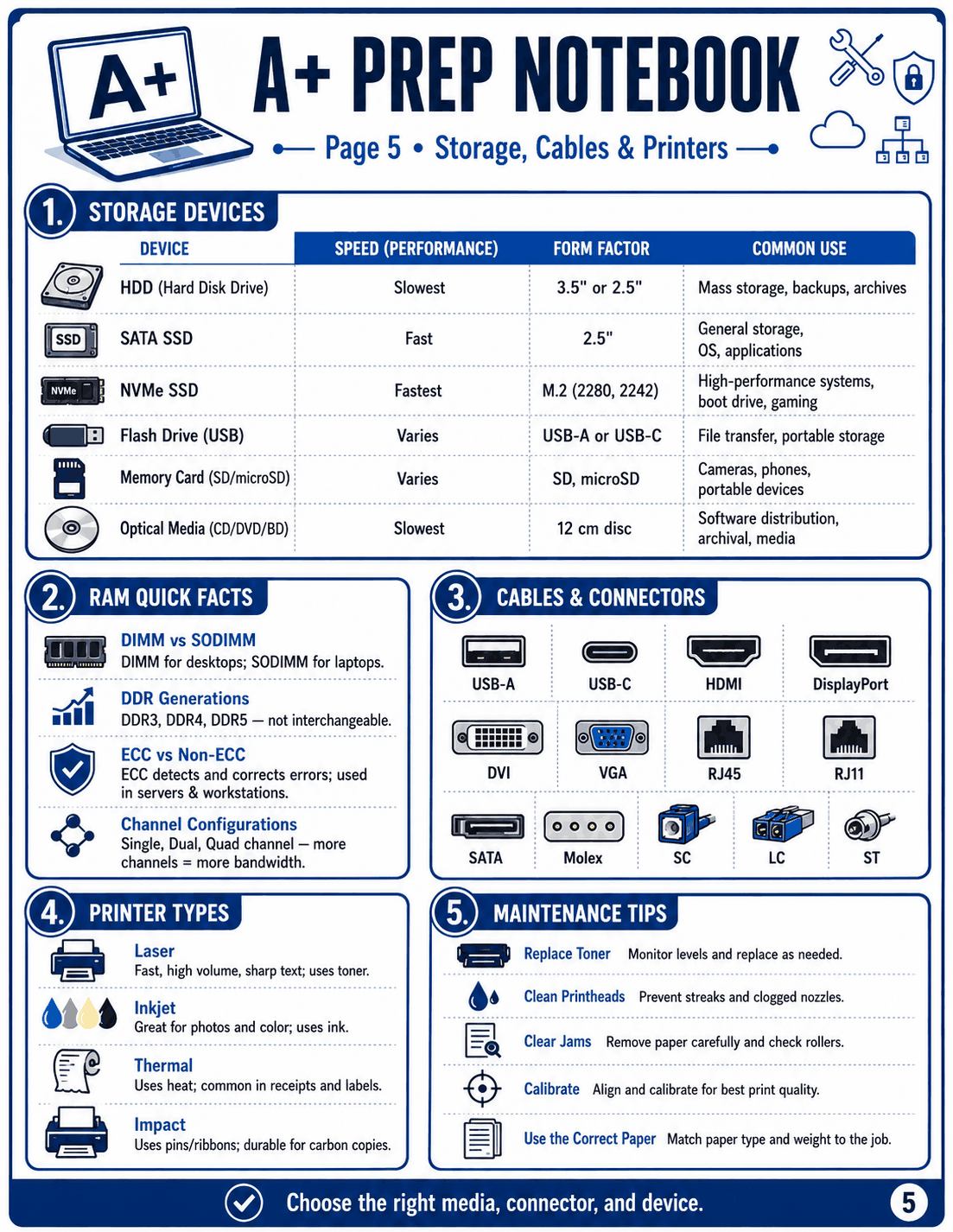 A+ Memory & Practice VisualOpen full-size image
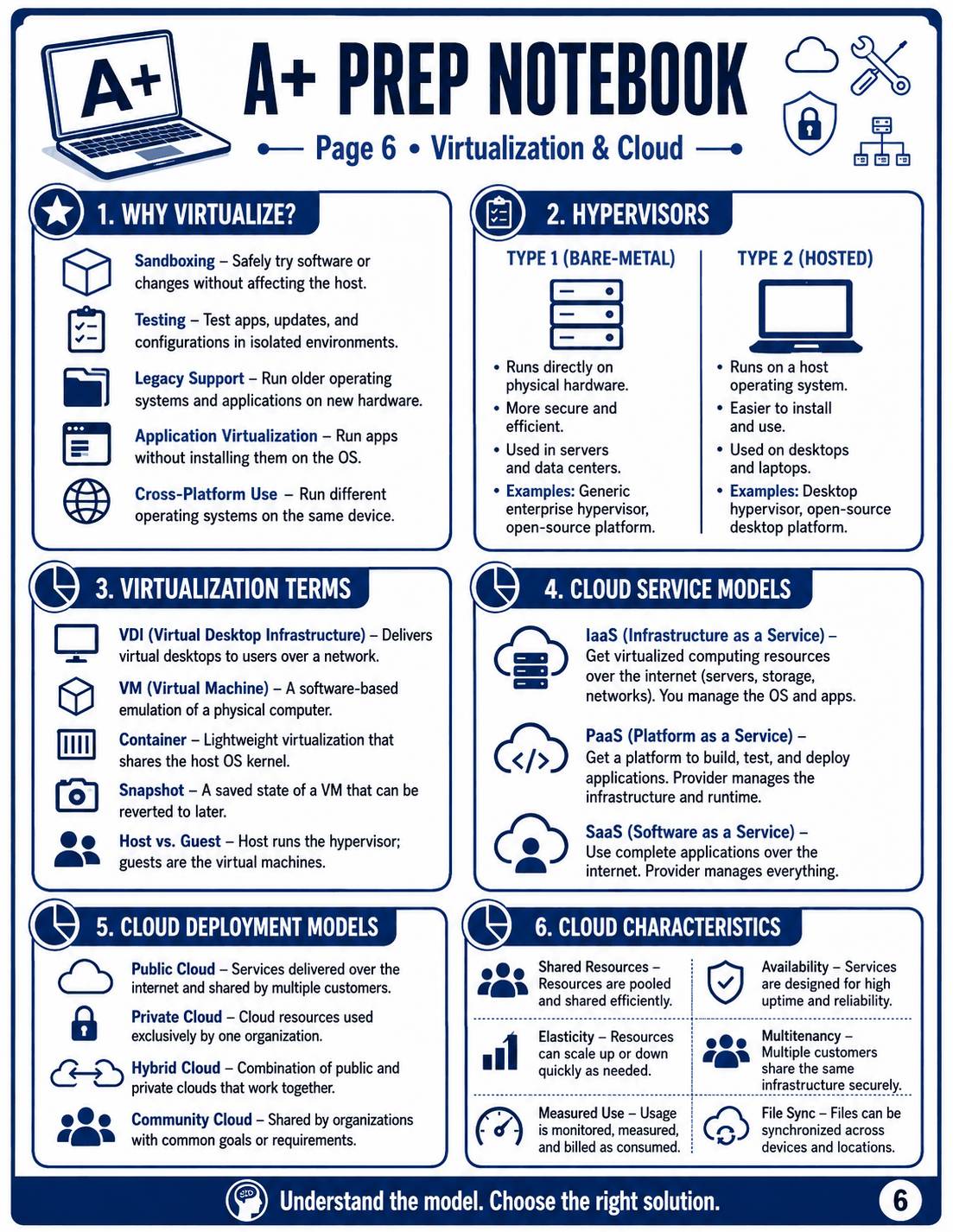 A+ Memory & Practice VisualOpen full-size image
 A+ Memory & Practice VisualOpen full-size image
 A+ Memory & Practice VisualOpen full-size image
 A+ Memory & Practice VisualOpen full-size image
Make it useful for exam day
Look: Study the visual.
Cover: Hide the labels or answers.
Recall: Say or write what you remember.
Check: Reveal the answer.
Repair: Add a memory trick where you struggled.